-
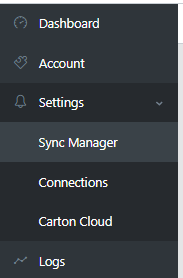
Fromt the menu, select Settings > Sync Manager
-
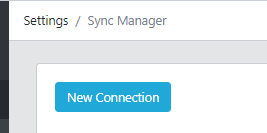
Click New Connection
-
Select your connection from the list. If you have mutliple types available to you, you are able to filter
-
Click create new

-
This will bring you to the configuration screen
Settings for Orders
- The following options dictate how the orders flow from WooCommerce to Myob
| Setting | Description | Notes / Requirements |
|---|---|---|
| Sync orders from WooCommerce with status | Select the order statuses that will be brought into MYOB. | At least one status is required. Custom statuses can also be added. |
| Last WooCommerce order entered in MYOB | Prevents re-syncing older orders already in MYOB. | |
| Customer type for orders | Choose whether to use a generic customer or create a new customer per order. | Matching can be done on email or display ID. • New customers are created from WooCommerce billing/shipping details. • For a generic customer, select them in “Existing customer code”. |
| Existing customer code | Customer to use for all orders when customer type is “Existing Code”. | Required when using a fixed customer. |
| Match customer on | Field used to match WooCommerce customers to MYOB customers. | Email or Display ID. |
| Custom field for customer | Optional WooCommerce meta field used when matching/creating customers. | |
| Create customer as individual | Controls whether new MYOB customers are created as individuals. | |
| Invoice delivery method | How invoices are delivered to the customer in MYOB. | Optional. |
| Customer layout | Layout applied to new customers. | Optional. |
| Print form | Print form assigned to new customers. | Optional. |
| Ship method | Default ship method for new customers. | Optional. |
| Transactions include tax | Send order to MYOB inclusive or exclusive of tax. | |
| WooCommerce prices include tax | Whether WooCommerce line amounts include tax. | Used to select the correct MYOB tax code. |
| MYOB tax code | Tax code used when a line has tax. | |
| MYOB tax free code | Tax code used when a line has no tax. | |
| Send to MYOB as transaction type | Controls the type of transaction created in MYOB. | Order or Invoice. |
| Use WooCommerce order number as MYOB number | Send the order using the WooCommerce order number instead of letting MYOB generate its own. | Leave disabled to use MYOB’s own numbering. |
| Order number prefix | Prefix prepended to the WooCommerce order number when using it as the MYOB number. | Only relevant when “Use WooCommerce order number” is enabled. |
| Match stock on (WooCommerce) | Field from WooCommerce used to match items. | |
| Match stock on (MYOB) | Field in MYOB used to match items. | |
| Default / non-stock item | Fallback item used when a WooCommerce product has no matching item in MYOB. | Recommended to avoid failed lines. |
| Use MYOB description on lines | Use the MYOB item description (or name) instead of the WooCommerce product name. | |
| Fee line code | Item/account code used for fee lines. | Required when fees are charged in WooCommerce. |
| Sales person | Salesperson assigned to the order in MYOB. | Optional. |
| Invoice category | Category assigned to the order in MYOB. | Optional. |
| Shipping method text | Populates the shipping method on the MYOB order. | |
| Send address to MYOB | Whether the shipping/billing address is written to Ship To. | |
| Include country on address | Appends the country to the delivery address. | |
| Use comment | Whether the customer note is written to the Comment field. | |
| Send payment to MYOB | Send payments to MYOB when the WooCommerce order is paid. | |
| Payment deposit to | Deposit account type for payments. | Required if sending payments. |
| Payment account | Default bank/account to receive payments. | Required if sending payments. |
| Apply payment to invoice | Whether the payment is applied directly to the invoice/order. | |
| Account per payment gateway | Map different WooCommerce payment methods to different MYOB accounts. |